

Symbols are named navigational markers that help you reference and jump to specific locations in your code files. Depending on the programming language and its active language server, symbols can reference variables, functions, classes, modules, properties, HTML tags, or other entities.
As any advanced developer knows, navigating via symbols is one of the fastest ways to traverse the codebase. While global search is great, VS Code features powerful, built-in tools designed specifically for quick, interactive navigation inside your currently active file.
The Outline View
Visual Studio Code Explorer features a dedicated Outline section that visualizes every symbol recognized in your active file:
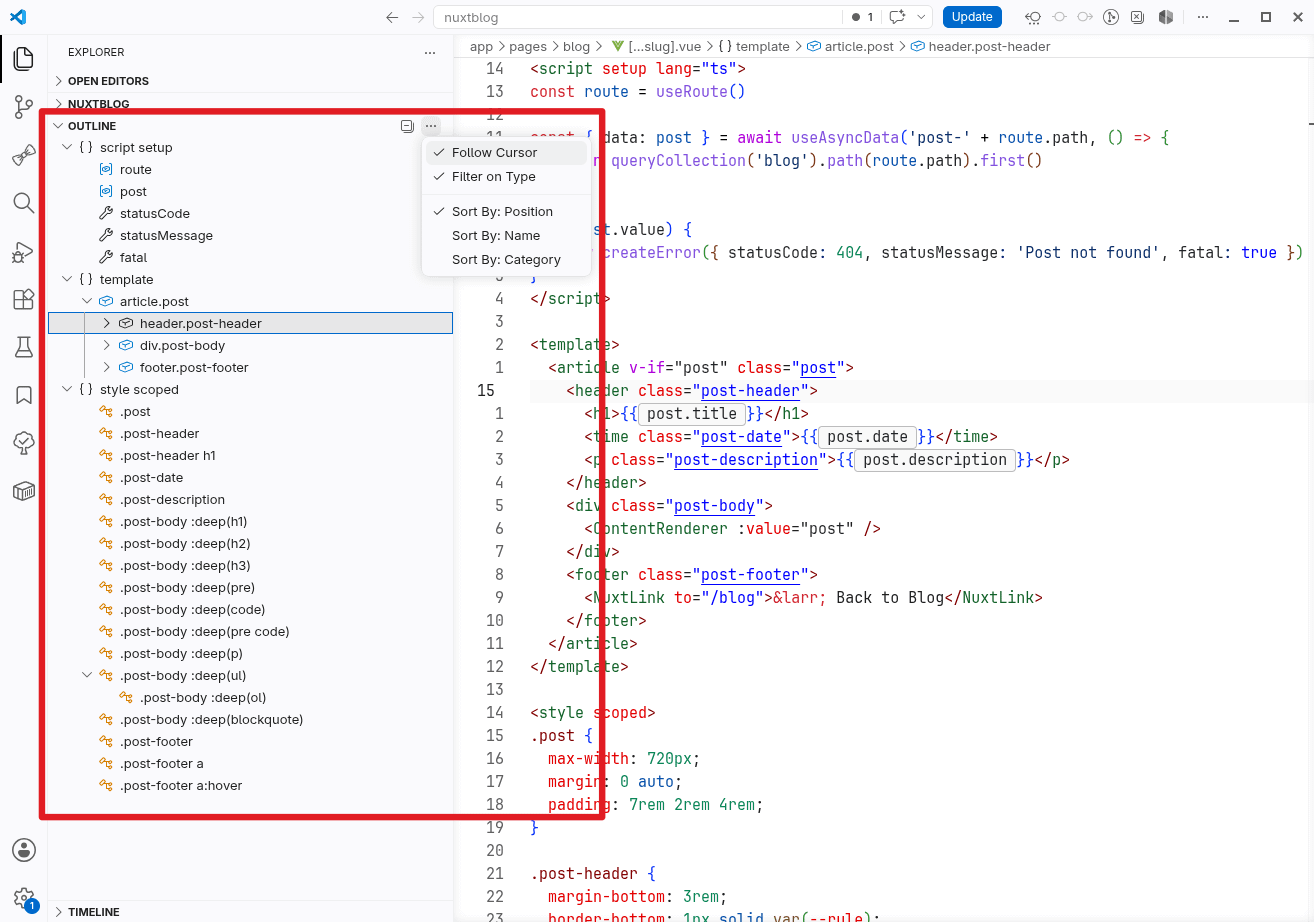
While the Outline sidebar is excellent for a high-level overview, two other keyboard-driven tools offer a faster, more fluid navigation experience.
Go to Symbol in Editor
The Go To Symbol in Editor… command is your fastest option when you already know exactly what you are looking for. You can trigger it instantly using a keyboard shortcut (CTRL + SHIFT + O) or by typing @ into the Command Palette.
By default, symbols appear in the order they occupy in the file. You can use the arrow keys to scroll through them, but the real power lies in the instant fuzzy search.
Tip: Prefix your search with a colon (
@:) to group the symbols by type (e.g., classes, functions, constants). When grouped, you can useAlt + Up/Down Arrowto quickly jump between entire sections.
Breadcrumbs Navigation
The Focus and Select Breadcrumbs command (CTRL + SHIFT + .) leverages the VS Code breadcrumb trail at the top of the editor. While breadcrumbs are typically used to navigate folders, the very last item in the trail acts as a hierarchical symbol picker:
This tool allows you to treat your file like a tree structure, using the arrow keys to dive up and down the scope hierarchy. It also supports quick filtering: just start typing the first few characters of a symbol to instantly highlight it.
Bonus: Symbol navigation for Markdown
Symbols aren't just for source code. In Markdown documents, headings are automatically indexed as symbols. This means all three tools listed above can be used to instantly fly through documentation files without endless scrolling.
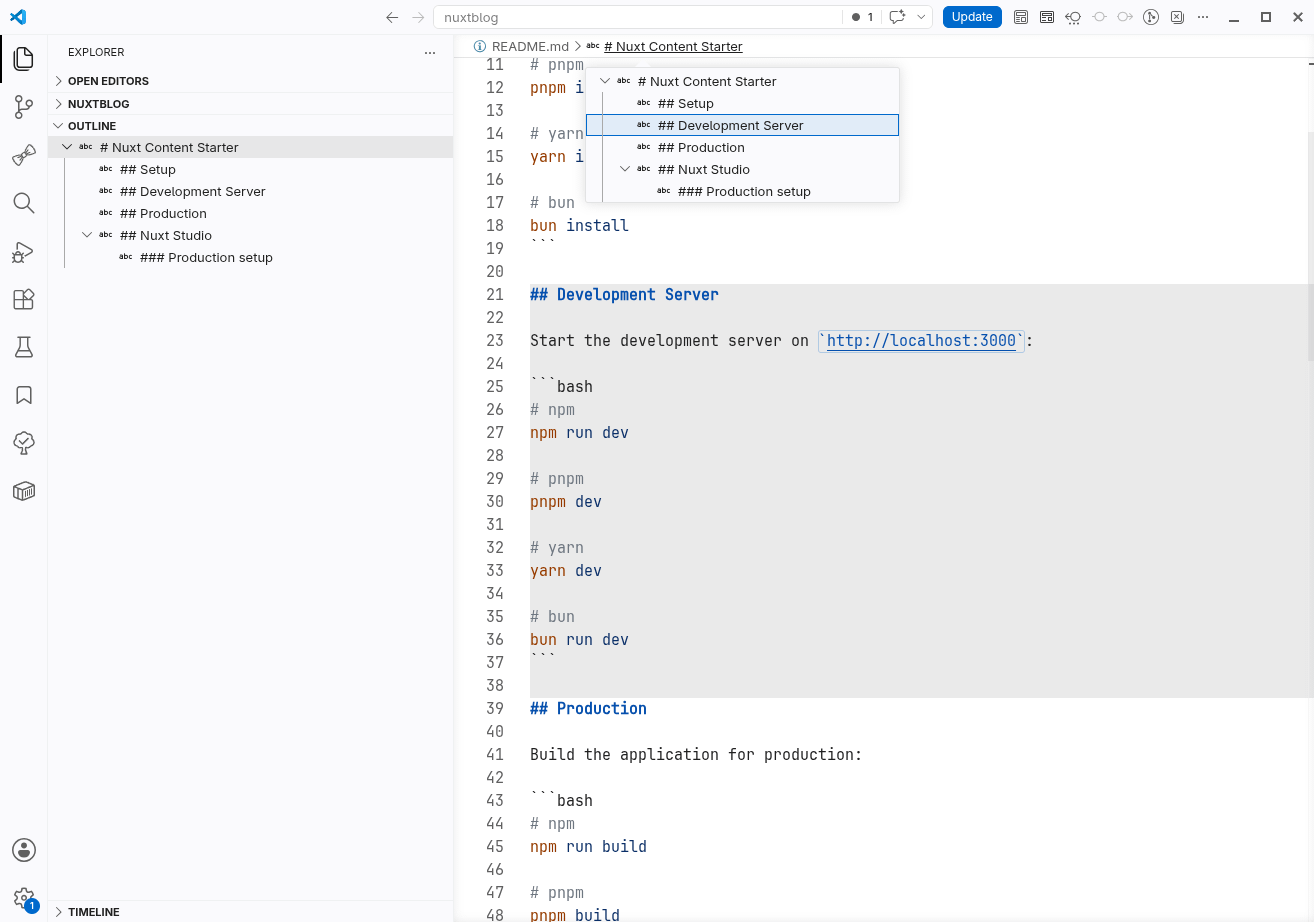
Personally, I prefer to work mostly without the Explorer sidebar, so I find a lot of utility in Go to Symbol in Editor and Focus and Select Breadcrumbs commands. Which of these features do you find yourself reaching for the most?
— Petr